Guides / Add recipes
Add a recipe from a website
Paste a link and the recipe is saved. Here is how, and what to do when a site will not be read.
GuideAdd recipes3 steps
1Copy the link
Open the recipe in your browser and copy its address.
2Open Add recipe and paste it
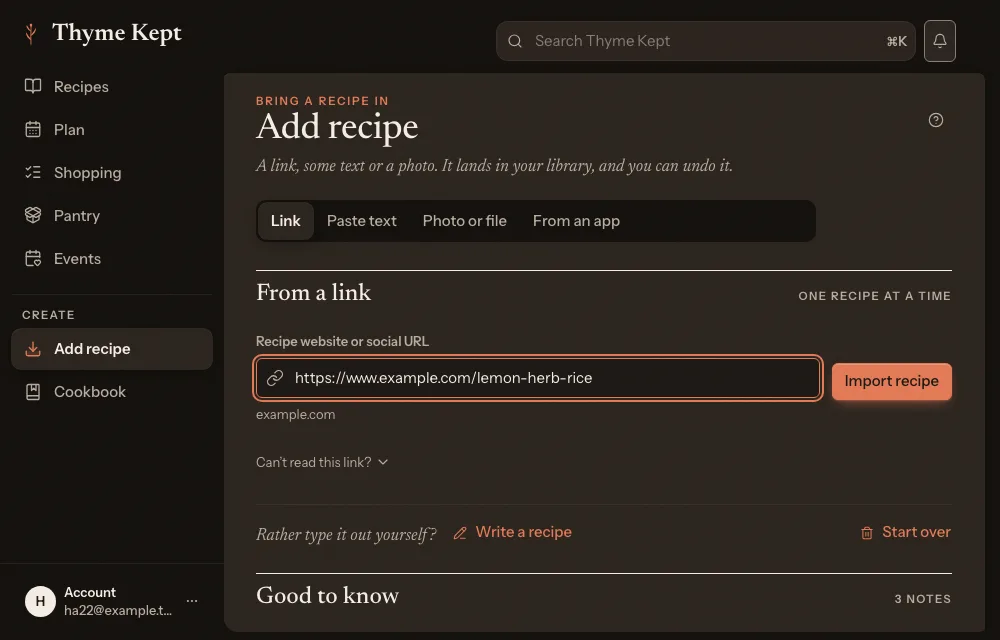
Choose Add recipe in the sidebar and stay on the Link tab. Paste the address into Recipe website or social URL, then choose Import recipe.
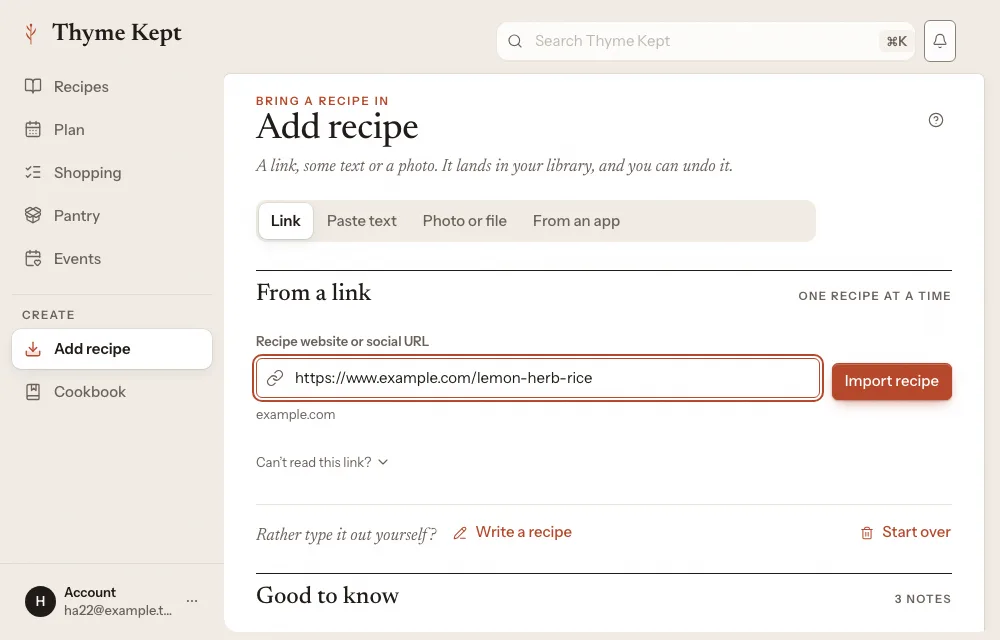
3It is saved straight away
There is no review step. The recipe goes into your library as it was read, and opens so you can look it over. A Saved to your library message has an Undo button for ten seconds.
If you paste a link you have already saved, Thyme Kept opens the copy you have and says Already in your library.
If a site will not be read
Some sites do not let Thyme Kept read them. Two things work:
- Try the original recipe’s link. If you were on a copy, find the original source.
- Paste the visible recipe text. Copy the recipe from the page you can see and use the Paste text tab. See Save a recipe from a social post for how pasting works.
A link did not import lists every message you might see.
Next
5 pagesStill stuck? Contact support
Updated October 25, 2026