Plan your week
Put recipes on the days you will cook them, then build a shopping list from the week.
1Open the plan
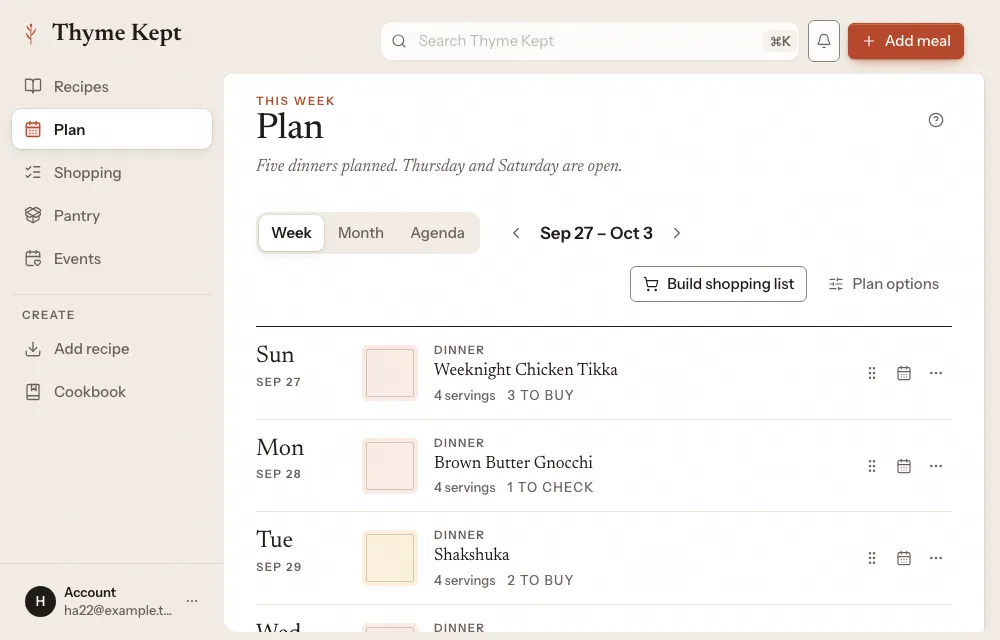
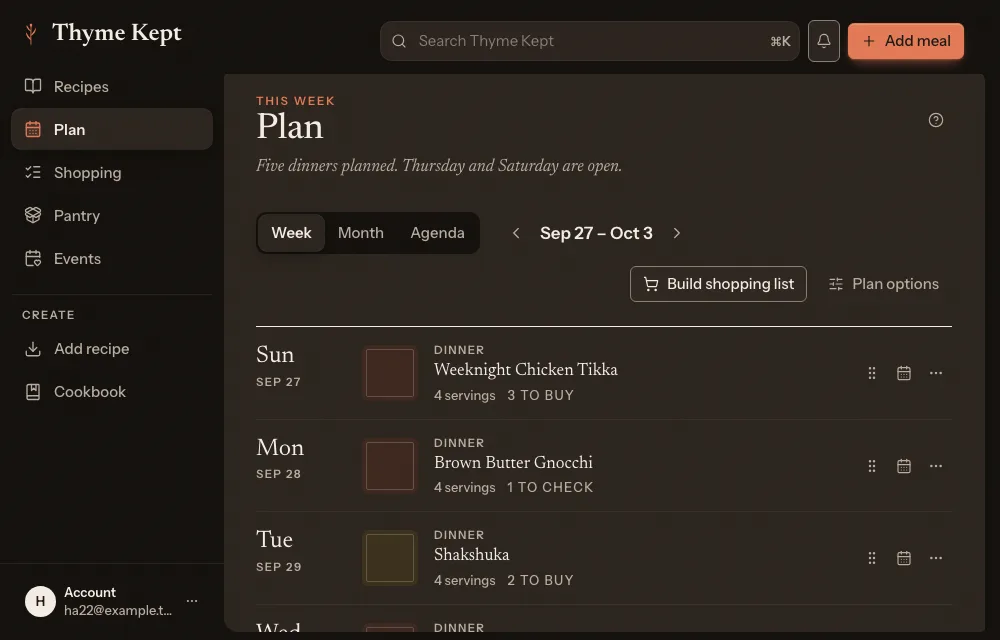
Choose Plan in the sidebar. The Week view shows each day with its meals. Use the arrows to move between weeks.
2Add a meal
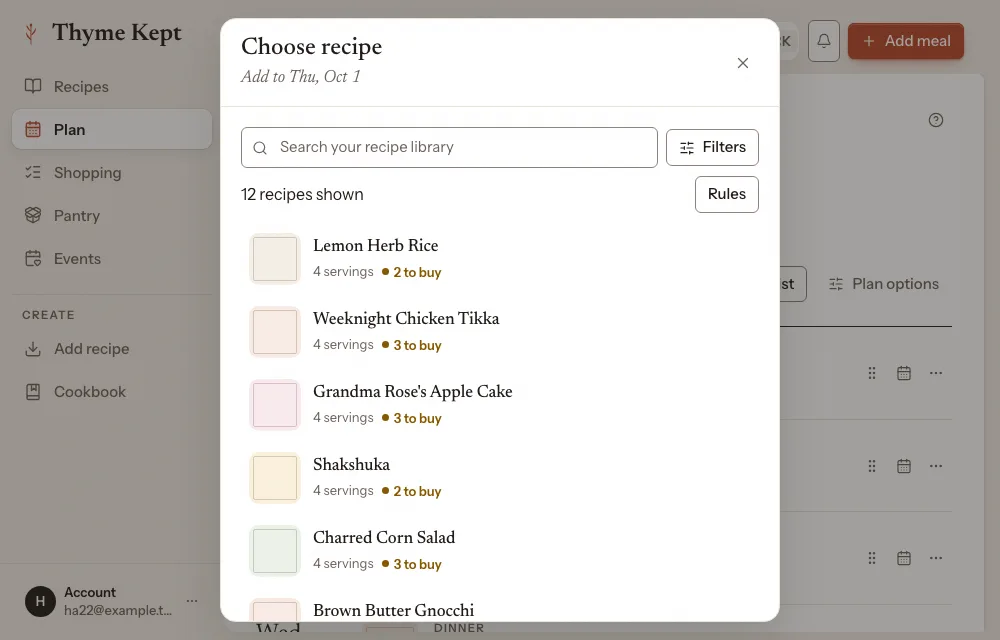
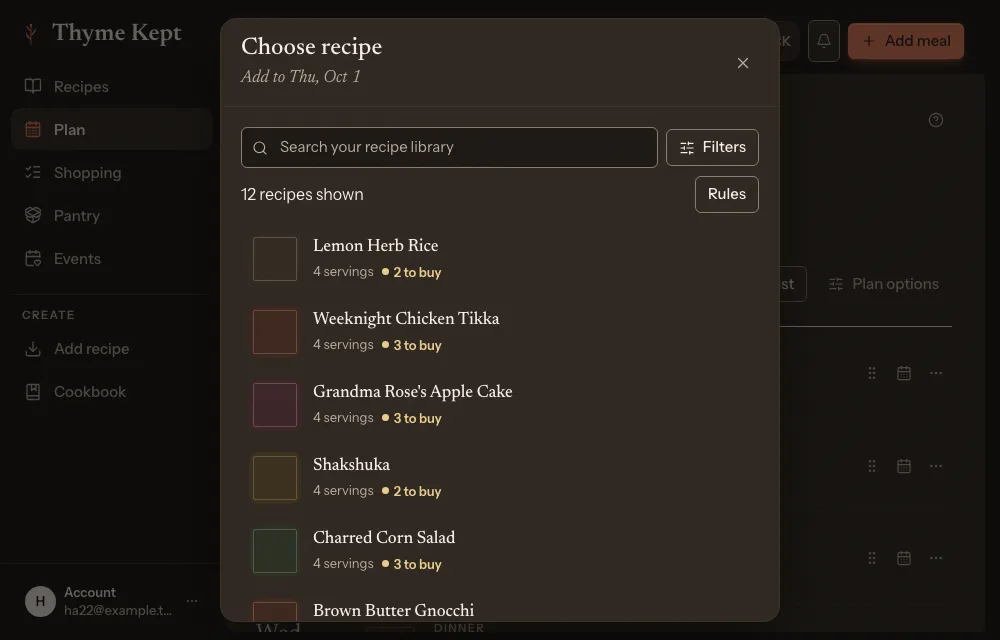
Choose Add meal, or Add meal on an empty day. The Choose recipe list has a search; choose a recipe to put it on that day. You can also drag a recipe from the recipe tray onto a day.
3Move or change a meal
Move sends a meal to another day. Plan on a meal opens its actions: Open recipe, Change meal type, Replace with recipe, Edit details, Plan leftovers, Mark used up, Record waste and Remove meal.
4See the month
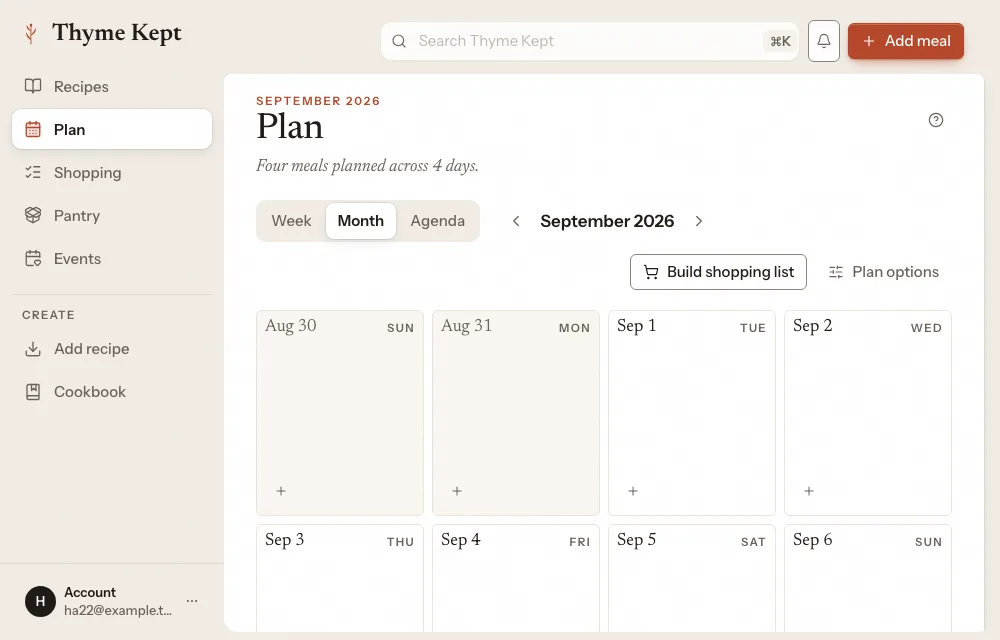
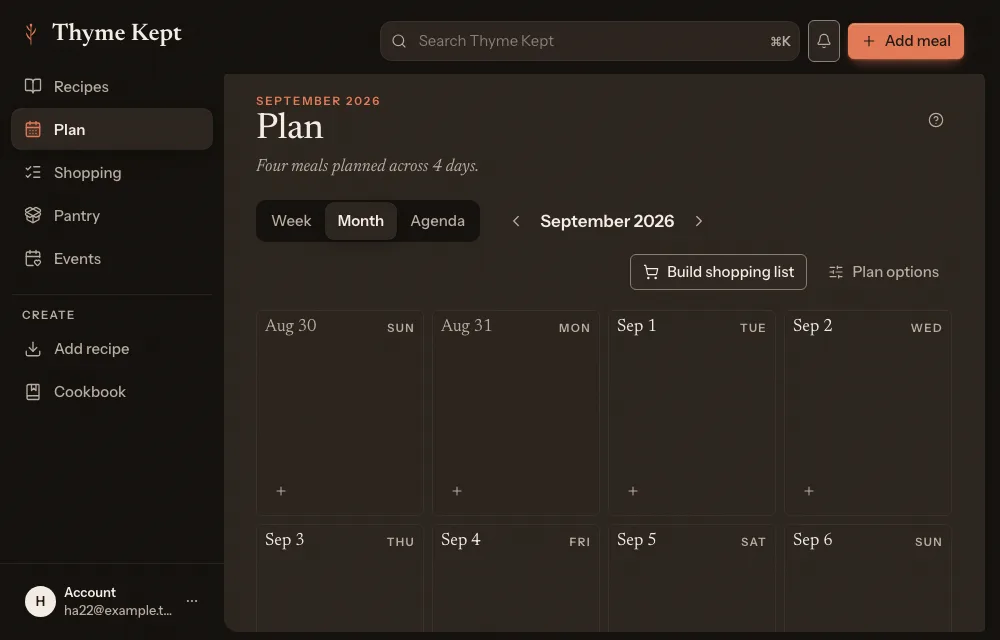
Month shows the whole month. Choose a day, then Add meal.
5Build the shopping list
Choose Build shopping list. Thyme Kept builds a list from the week, and says “Shopping list built from this week.” Build it again after the plan changes and Thyme Kept shows Review plan changes first.
Next
3 pagesStill stuck? Contact support
Updated October 25, 2026